 Verbatime
Quick start#
Record a run on your development machine and see where the time went. Download
verbatime-agent.jar from the GitHub releases page,
then choose to record with the agent alone or with
JDK Mission Control.
Requirements#
| Part | Needs |
|---|---|
| Agent | Java 25 or later for the application |
| JMC plugin | JDK Mission Control |
| vbtm CLI | macOS on Apple silicon or Linux, or Java 17 or later for the jar |
Agent alone#
Records everything from startup until the JVM exits.
-
Run the application with the agent.
roots=names the method to record, andout=the file to write.java -javaagent:/path/to/verbatime-agent.jar=record=startup,roots=com.example.app.OrderService::placeOrder,out=trace.vbtm \ -jar app.jar -
When the JVM exits, read
trace.vbtmwith vbtm, or open it in JDK Mission Control withFile > Open.vbtm sessions trace.vbtm --sort dur
With JDK Mission Control#
Starts and stops recording at any time while the application runs.
-
Copy
verbatime-jmc-plugin.jarinto thedropinsdirectory of JDK Mission Control, and restart it. See Install. -
Start the application with the agent and a JMX port.
java -javaagent:/path/to/verbatime-agent.jar \
     -Dcom.sun.management.jmxremote.port=7091 -Dcom.sun.management.jmxremote.rmi.port=7091 \
     -Dcom.sun.management.jmxremote.authenticate=false -Dcom.sun.management.jmxremote.ssl=false \
     -Djava.rmi.server.hostname=localhost \
     -jar app.jar
Warning
These flags turn off JMX authentication.
-
In JDK Mission Control, choose
Window > Verbatime. Connect tolocalhost:7091, and add the methods to record under Instrumentation roots. -
Press Start recording, use the application, then press Stop recording.
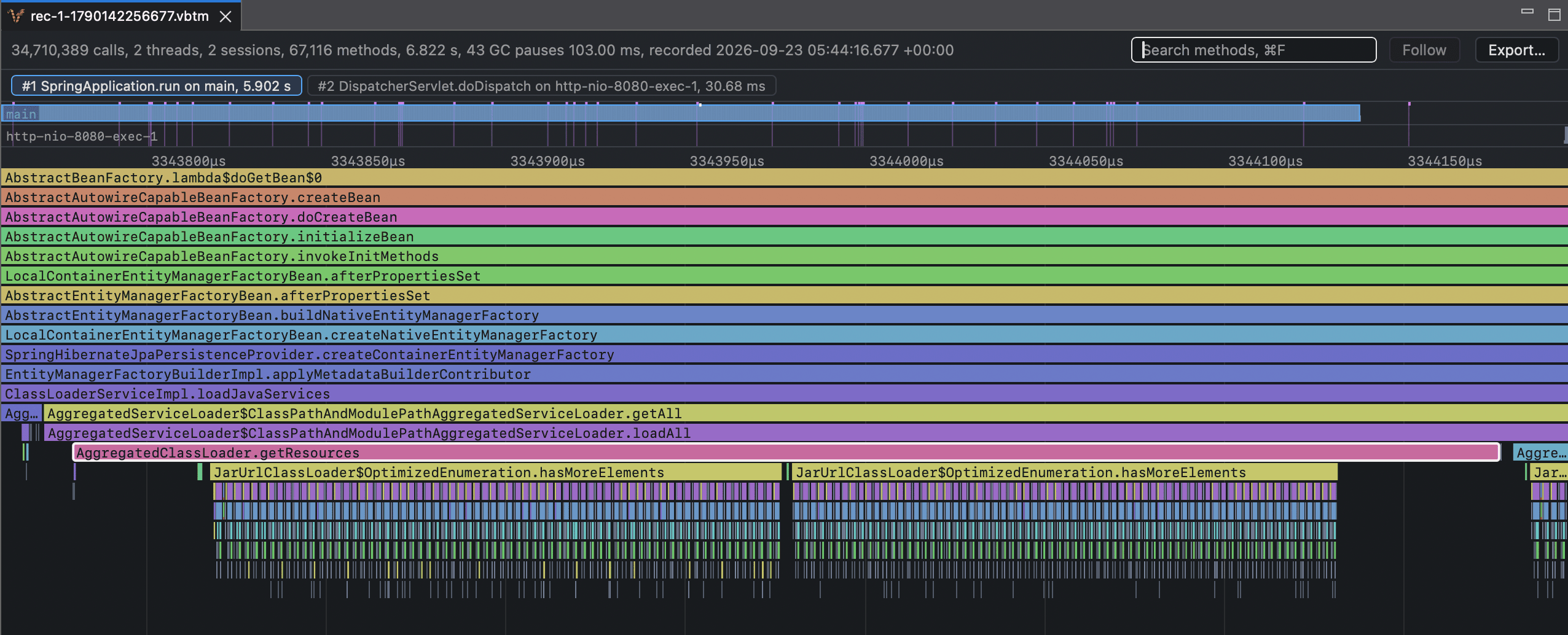
The recording opens as a timeline flame chart.
Next#
- Adding the agent to Maven, Gradle, Tomcat, and more
- Agent options, including which roots to choose
- Use cases